Login into BO Server and follow the step by step configuration process:
- Click start button and open the Central Configuration Manager as shown below:

- Then stop the Apache Tomcat service

- Click Computer in start button

- Open “Program files(x86)”, refer your drive where the Business Objects is installed (We have installed in E drive)

- Open SAP Business Objects folder

- Then open “Mobile 14” folder

- Next open Server folder

- Copy both .war files(MobileBIService.war,MOBIServer.war)

- Open “Tomcat6” folder

- Open “webapps” folder

- Paste the copied .war files in the “webapps” folder


- The following selected folders will be deployed automatically, once the “Apache Tomcat” service in Central Configuration Manager starts

- Open “server.properties” file with notepad in below location:SAP BusinessObjects/Tomcat6/webapps/MOBIServer/WEB-INF (See below), then change DisplayName,MOBILE_USER_NAME, MOBILE_URL, MOBILE_CMS as per your configuration and save.

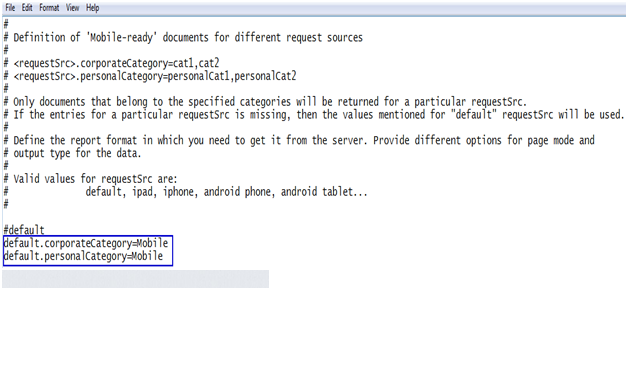
- Open “mobi.properties” with notepad in below loation: SAP BusinessObjects/Tomcat6/webapps/MobileBIService/WEB-INF (See below)

- In this file change corporate category, personal category as shown in next image and save.

- Open “Control Panel” in Start button and click “uninstall a program” as shown below:

- Select “SAP BusinessObjects BI platform 4.0SP4” and click “Uninstall/Change”


- On "Select Features" page, select the “Mobile Services” ,”Mobile Servers” and “CMS plugin for Mobile” features as shown below.
- Note: ‘CMS plugin for Mobile’ will be enabled by default in the SAP BO setup>Select Features.


- If the options are enabled by default then click “Cancel” button below

- Now click “Exit Setup”.


- Now open Cockpit BI URL and select the report you want to see in mobile. Right click on the report and select “Categories” option, as shown below:

- Expand “Corporate Categories” and select “Mobile” option, click “OK” button below. If you don’t want to see the reports in mobile then deselect “Mobile” option in the same window.

- Install the Mobile application “SAP Business Objects Mobile” and click on “Connect” and select “Create New Connection” option

- Enter these details in the screen below to connect BI enterprise
Connection Name: Mobile
Mobile Server URL: http://SERVERIP:8080
CMS Name: SYSTEMNAME:6400
User Name: 123456
Password: *****************
Authentication Type: Enterprise
Click Save
as shown below:


- Click Connect and Select the created connection.

- Enter Application Password to access the mobile app (optional).

- Now you can click and see the reports in your mobile.


No comments:
Post a Comment